Use this procedure to connect an existing Velos installation to Nedap Now.
Use this procedure only when you want to keep existing Velos data and connect to a new, empty Nedap Now company. Contact Nedap Support before you continue if your company already contains:
- Farms
- Animal data, or
- Existing installations
Note- During data export, Velos cannot be used.
- After export is completed, Velos switches to Nedap Now mode.
- After the setup is finished, you can no longer add or edit animals or create calendar events in Velos. Manage these tasks in Nedap Now instead.
Step by Step Instructions
Follow the steps below to connect an existing Velos installation to a new farm in Nedap Now. Before starting, make sure you have the company code and the Velos license code available.
Check also the instruction video
1. Add a new company in Nedap Now
- Login to Nedap Now with your Nedap Now account.
- Select Add company.
- Enter the company code.
- Select Next.
- Enter the company details.
- Select Save.
2. Add a new farm to the new company
- Open the Farm Setup app.
- Select + Add farm.
- Enter the farm details.
- Select Save.
3. Connect the existing Velos installation to the new farm
- Select Connect installation.
- Enter the Velos license code of the existing Velos installation.
- Enter the Installation name
For instance: Installation Sunset Farm. - Select Save.
4. Prepare the existing Velos installation
- First create a back-up: Create a Manual Backup.
- Check for updates: Select Maintenance > Update > Internet update.
- Remove the Attention light behavior component, if one exists: Settings > Behavior components > Actions.
- Delete the Taurus user if one exists.
- Go to Settings > Users and delete the Taurus user if one exists.
- Check the time zone and select Submit: Set Time, Date, and Time Zone Settings.
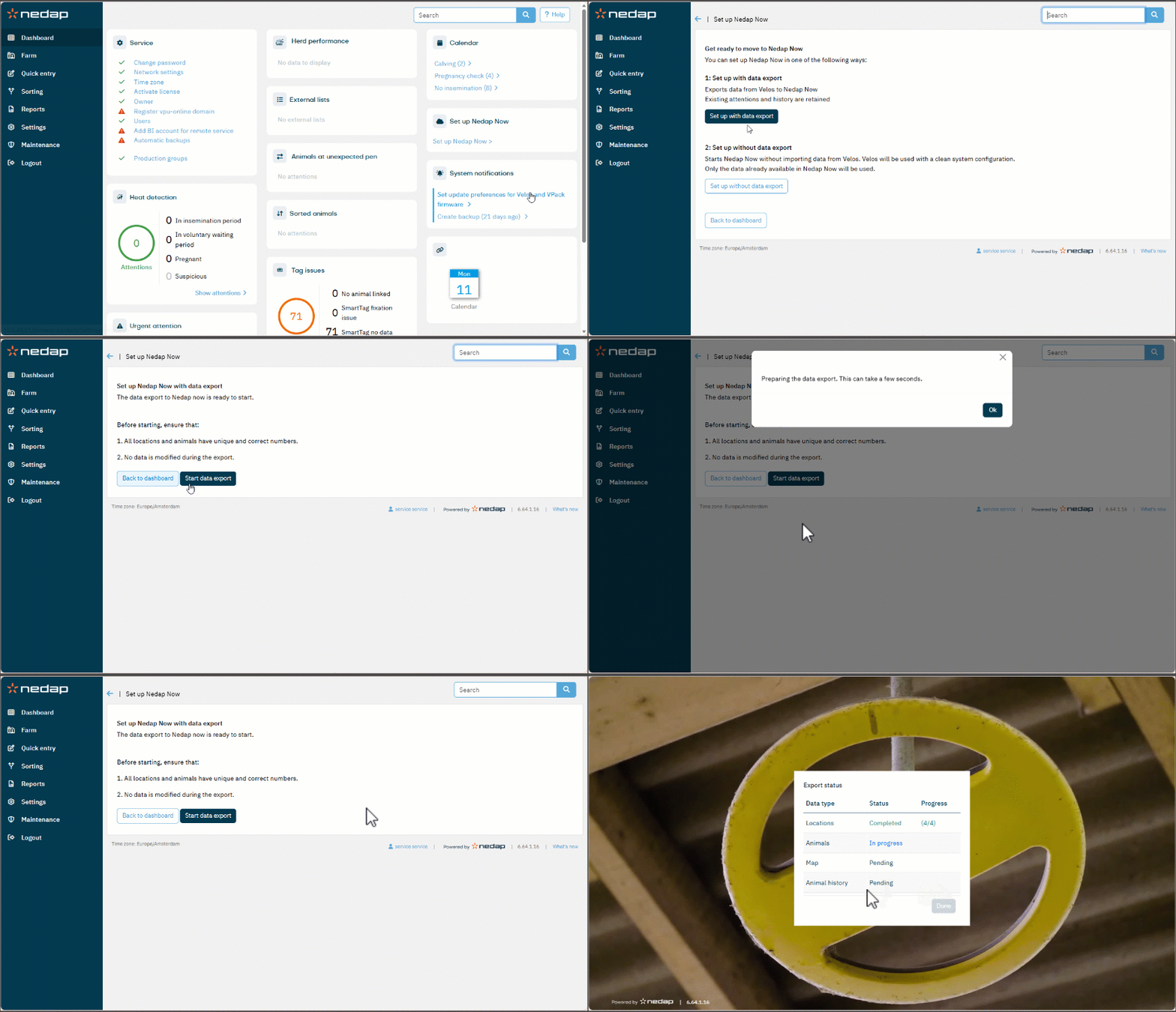
- Select the Set up Nedap Now link on the right side in the Velos dashboard.
5. Get ready for data export
Select Set up with data export.
Before export can start, fix all reported issues.
| Issue | Solution |
|---|
| Animals on the farm location | Move the animals to another location |
| Location has no name | Add a name to all locations |
| Location number with number 999 | Change or remove this location |
| Animals have duplicate life numbers | Assign a unique life number to each animal |
6. Export data
- Select Start data export.
- Select Ok.
During export (this can take some time):
- Velos cannot be used.
- Progress is shown in the export status bar.
When export is completed: Select Done.
After Setup is Completed
- Velos runs in Nedap Now mode. In this mode, Quick Entry is no longer available in the menu.
- Manage animal data and calendar events in Nedap Now instead of Velos.
- Verify that animal history data is available in Nedap Now.
- Remove location 99 in Nedap Now, if one exists.
Verify the exported data
- In the Tag app, sort the animals by Last connected and open several recently connected animals. Under Health, verify that the 48-hour details section contains data.
- In Worklist, compare the In Heat list in Nedap Now with the same list in Velos. Verify that the same animals appear in both lists. If no animals are in heat, the list can be empty.
