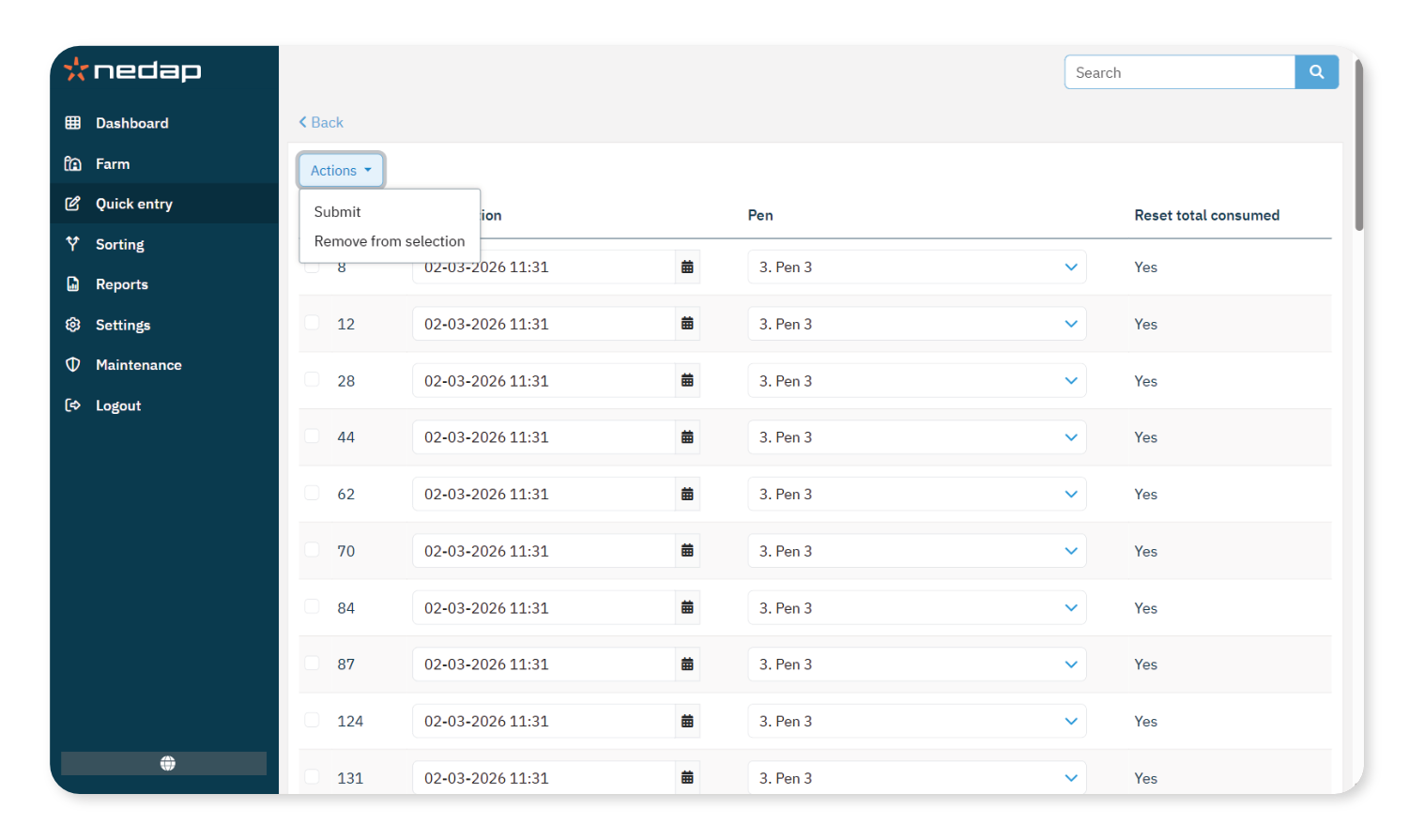
With Quick entry, you can update up to 5 data entries for multiple animals in one workflow.
Depending on your preferences, you can choose how to apply the changes:
- Apply to all: Apply the same changes to all selected animals at once.
- View animals: Review and edit data per animal before submitting the changes.
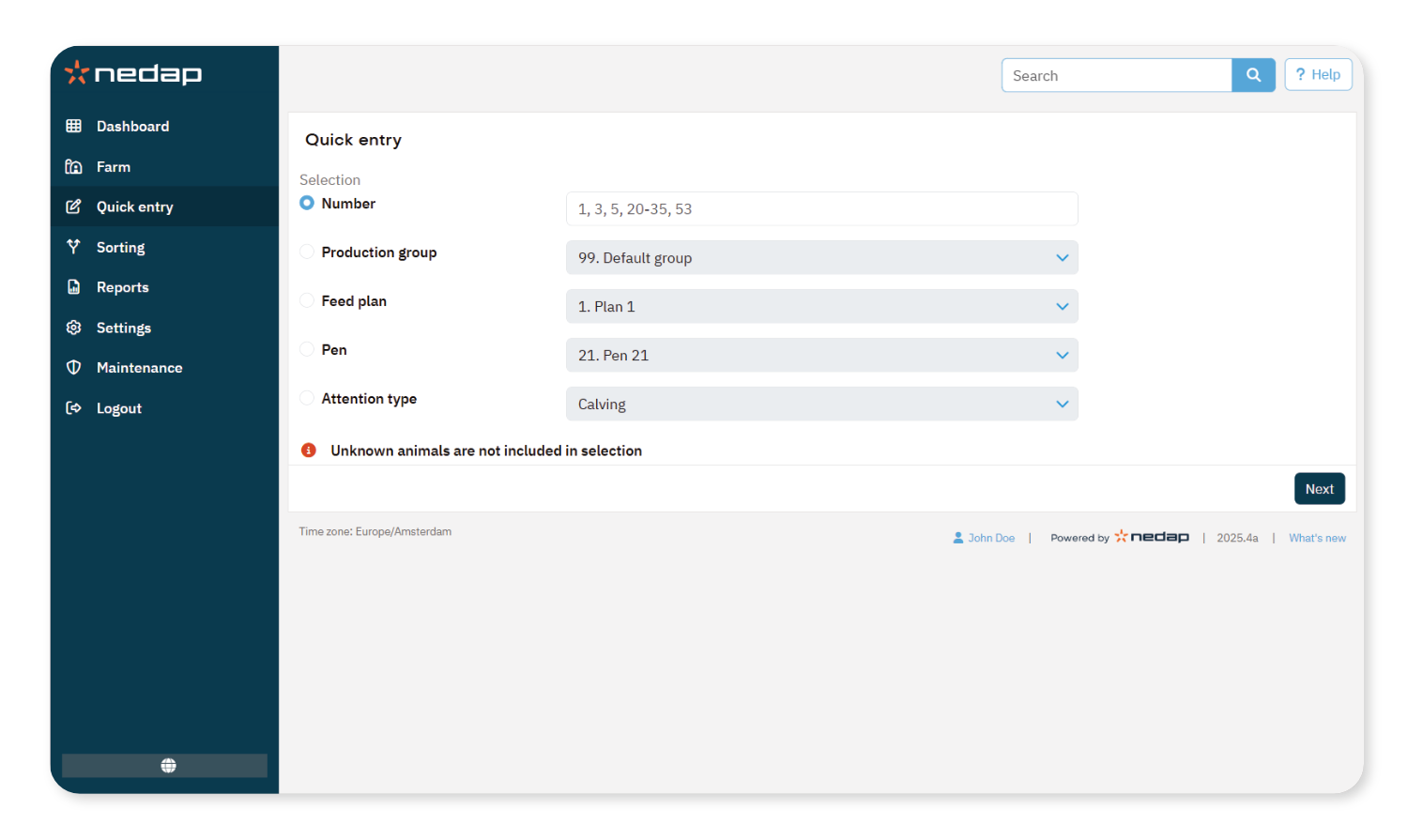
Select a Group of Animals
You can select a group of animals based on the following data categories:
- Number (animal, tag or life number)
- Production group
- Feed plan
- Pen
- Attention type
Use Apply to All
- Select Quick entry from the menu.
- Define the animal selection using the data categories.
- Select Next.
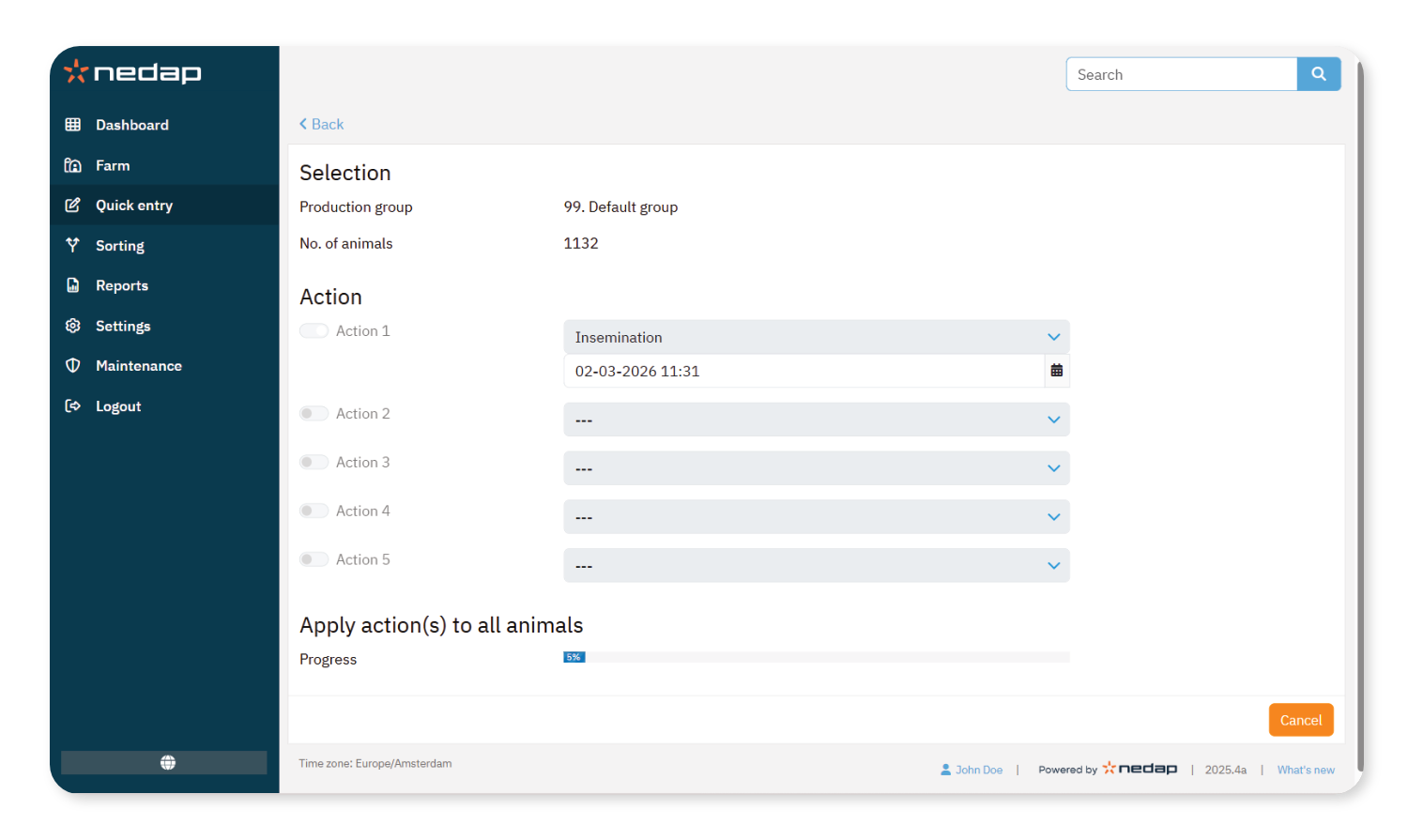
- Enable the actions you want to apply (maximum of 5 actions).
- For each action, select an option from the drop-down list and define the required details.
- Select Apply to all. The changes will be made, indicated by the progress bar.
Use View Animals
- Select Quick entry from the menu.
- Define the animal selection using the data categories.
- Select Next.
- Enable the actions you want to apply (maximum of 5 actions).
- For each action, select an option from the drop-down list and define the required details.
- Select View animals to review and edit data per animal.
- Modify values as needed.
To process the animals, use one of the following options until the list is empty:
NoteSelecting Back after changing the data or removing animals will undo all your work!