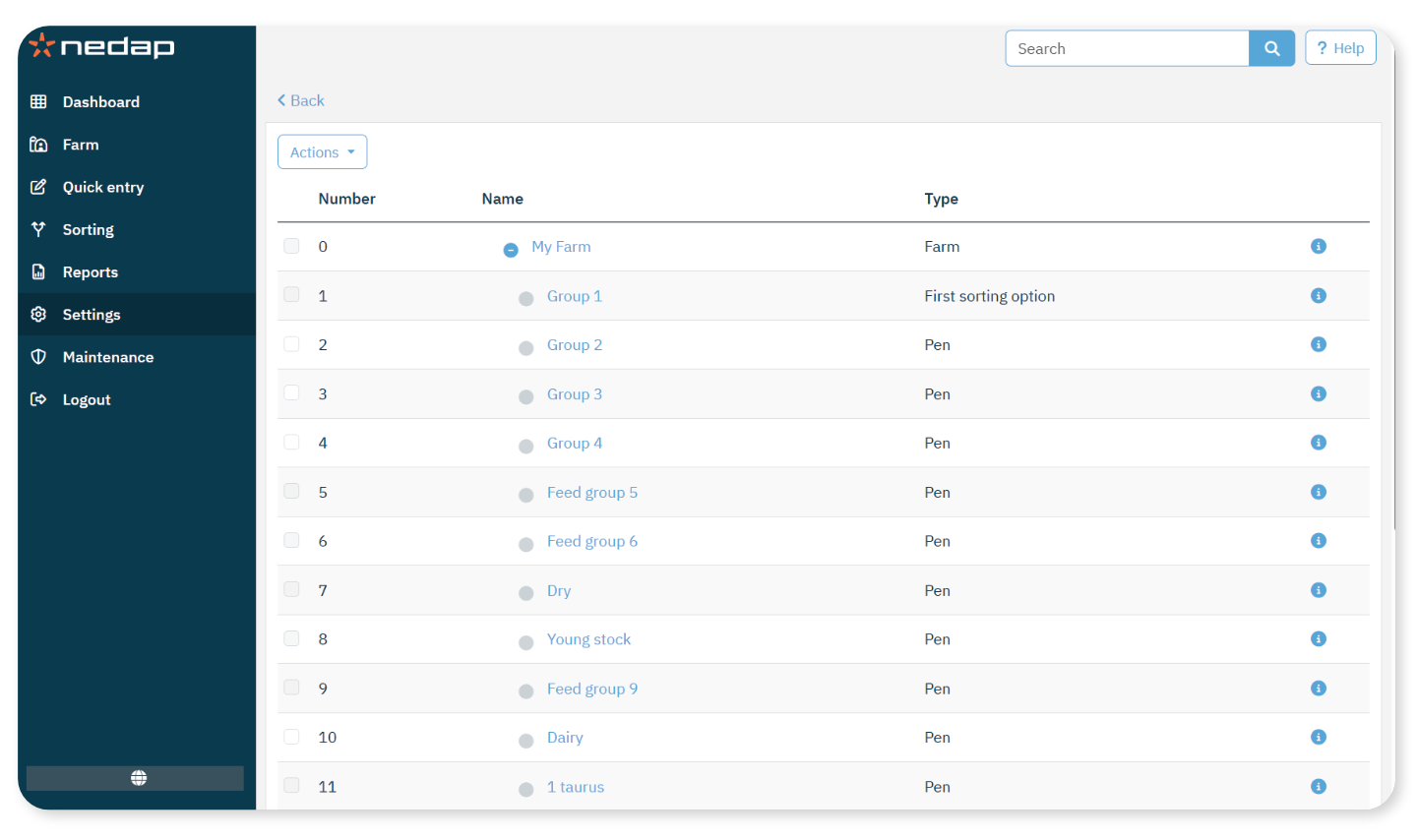
Add, edit and delete your pens on the Farm layout page under Settings.
Pen Types
When you create a pen, select one of the following types:
- Pen: A standard pen where animals normally stay.
- General: A defined location on the farm that is not used for sorting and is not an animal pen. For example, a lane between two sorting gates.
- Sorting option: A location used to sort animals for a specific purpose, such as insemination or a general checkup. You can configure up to six sorting options. For more information, see Add Sorting Pens and Lanes between Sorting Gates.
Add a Pen
- Select Settings from the menu.
- Under Farm, select Farm layout
- Select Add pen.
- In the new window, adjust the Number if required. By default, the system assigns the next available number.
NoteEnter a unique number for each location.
- Enter a Name for the pen.
- Select the correct pen Type.
- Leave Parent unchanged.
- Select Submit.
Edit a Pen
- Select Settings from the menu.
- Under Farm, select Farm layout
- Select a pen.
- In the new window, adjust the data.
- Select Submit.
Delete a Pen
You can only delete a pen if it is:
- Not in use as a pen for animals.
- Not in use as a pen for groups.
- Not linked to any production state.
- Not in use by a behavior component.
See the information icon to see if the group / pen is in use.
- Select Settings from the menu.
- Under Farm, select Farm layout.
- Select the checkbox of the pen you want to delete.
- Select Actions > Remove.
- Select Ok to confirm.
