Feed amounts determine how much concentrate an animal receives in a 24-hour period. The way feed amounts are defined depends on whether you use a Farm Management Program (FMP).
Using a Farm Management Program
If you use a Farm Management Program, the daily feed amounts are defined there.
In Velos the feed is distributed according to the spreading and limits configured in the default feed plan.
Using Only Velos
If you do not use a Farm Management Program, you must define the daily feed amounts in Velos.
Select Settings from the menu.
Under Feeding, select Feed plans.
Select a feed plan.
Open the Feed amounts tab.
Choose one of the following Types in the drop down menu (more info below):
Fixed amount: Same daily feed amount for all cows in the group
Birth date: Feed amount based on the cow’s age
Lactation: Feed amount based on the lactation cycle
Only one feed amount type can be defined per feed plan.
Fixed Amount
Use a fixed amount when all animals in the feed plan should receive the same daily amount.
In the Feed amounts tab, select Fixed amount.
Enter the total daily feed amount per feed type (kg).
Select OK.
The feed amount will be built up gradually according to the configured limits.
Birth Date
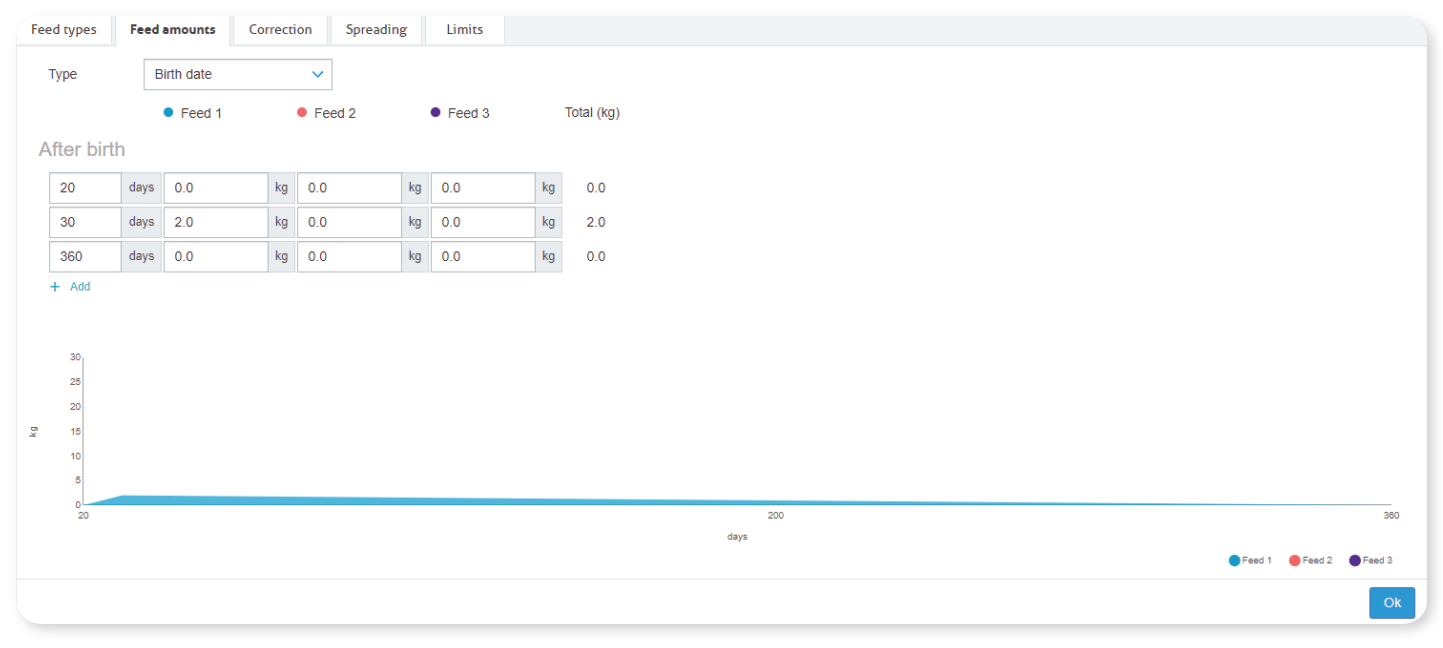
Use Birth date to gradually increase feed amounts based on the animal’s age.
The starting point (Day 0) is the animal’s birth date.
Make sure the birth date is correctly entered in the animal calendar.
In the Feed amounts tab, select Birth date.
Enter the number of days and the corresponding feed amount (kg).
Select Add to add more rows.
Use at least two rows to define a correct feed curve.
Select Ok.
Each row defines a checkpoint where the feed amount increases or decreases.
Lactation
Use to adjust feed based on the lactation cycle.
Velos allows you to define:
Before calving
After calving
Before dry-off
If milking is included in your license, you can also adjust feed amounts based on milk yield using a milk feed table.
Before Calving
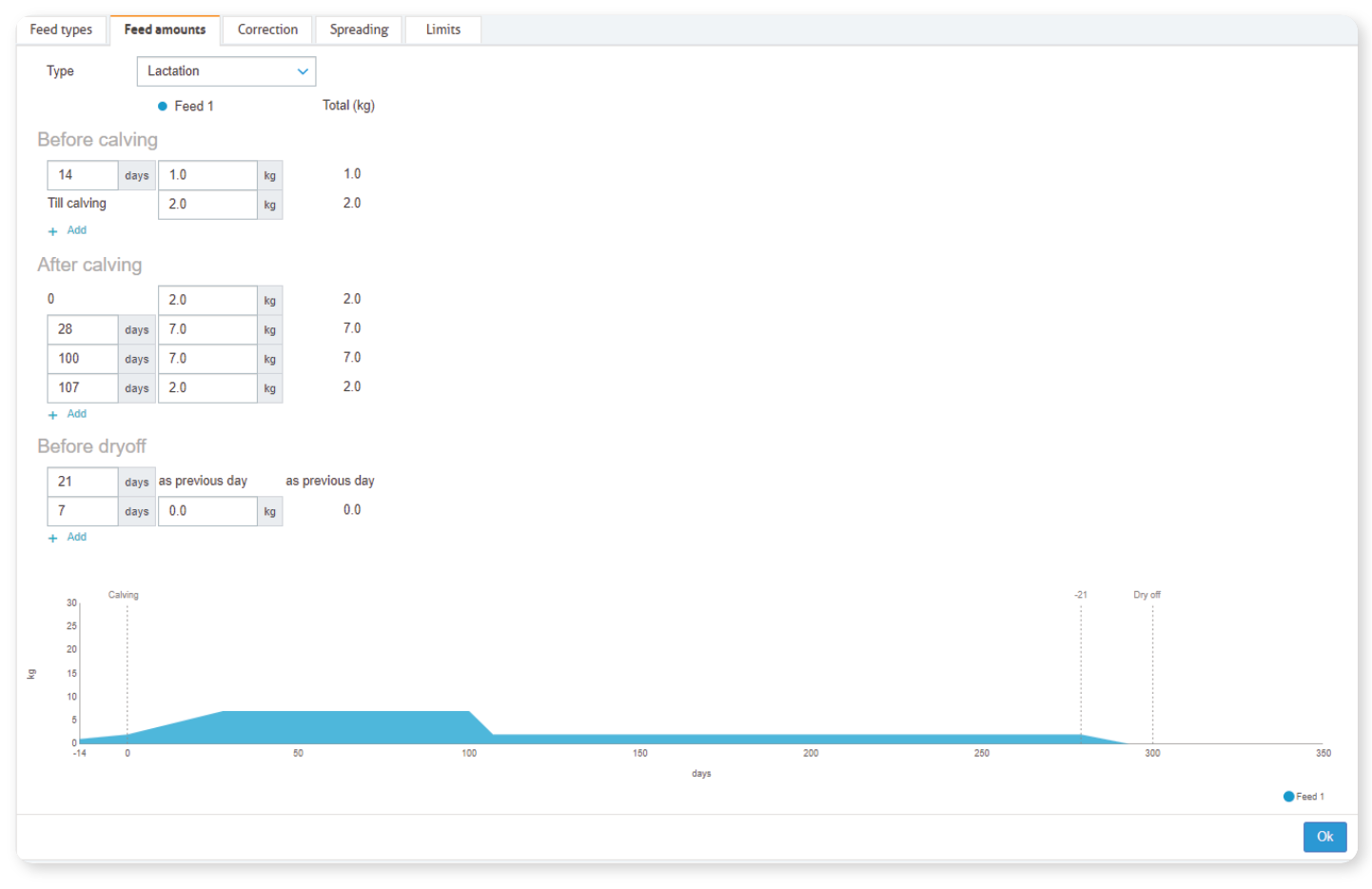
Day 0 is the expected calving date (based on insemination).
Select Lactation in the Type field.
Select Add to create a row for Before calving.
Enter the feed amount per feed type for Day 0.
If needed, add rows for days before calving (Day -1, -2, etc.).
Select Add to define additional periods.
The graph updates automatically.
After calving
Day 0 is the actual calving date.
Select Add to create Day 0.
Enter the feed amount for Day 0.
Select Add to define additional days in lactation.
Enter the feed amount for each checkpoint.
The graph updates after each row.
Before Dry-off
The Before dry-off period is based on the expected dry-off date.
Select Add to define days before dry-off.
Enter the number of days and feed amounts.
The final row must reduce the feed amount to 0.0 kg.
Select Ok to save.
The graph gradually decreases the feed amount toward dry-off.
Milk Feed Table (Optional)
If milking is included in the Velos license and electronic milk meters are used, you can adjust feed amounts based on milk yield.
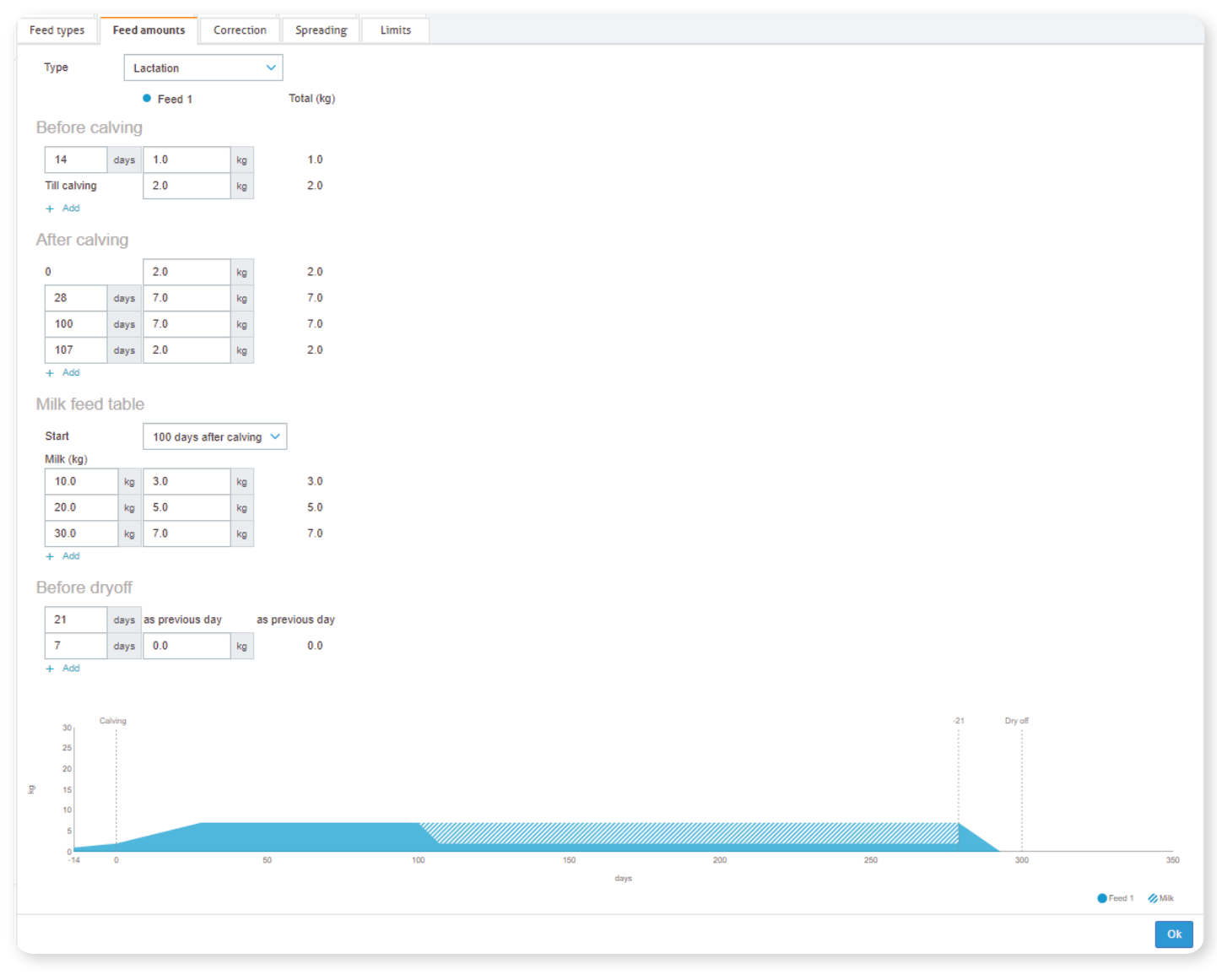
Velos uses the average milk yield of the past 10 days to calculate corrections.
In the Lactation setup, define a Start day for the milk feed table.
Select Add to create rows.
In the first column, enter the milk yield (kg).
In the second column, enter the feed amount (kg) per feed type.
Add as many rows as required.
Select Ok.
The milk feed table increases the feed amount only when it is higher than the lactation curve.
The feed amount will never exceed the configured limits.
NoteAfter defining feed amounts:
Configure spreading
Configure limits
Verify feed start
Changes take effect after the next feed start.
