SmartTag Issue Types and How To Resolve Them

Modified on Mon, 23 Feb at 10:52 AM

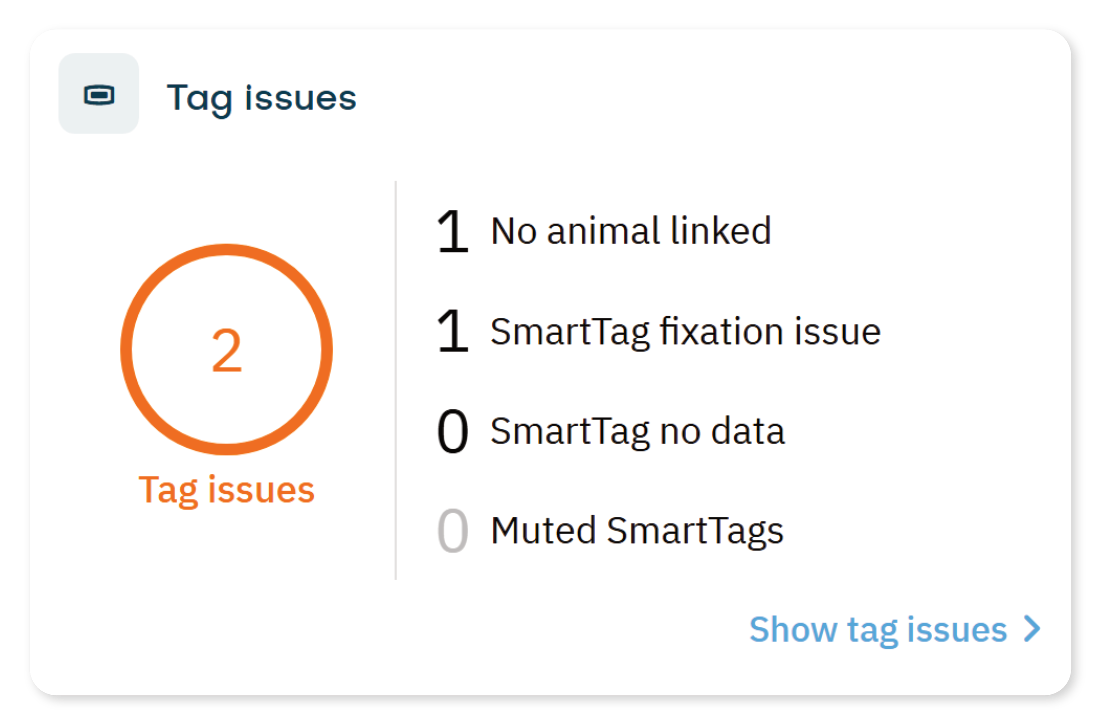
You can find SmartTag issues on the Dashboard in the Tag issues tile.

Each issue indicates a specific problem with a SmartTag. Use the table below to identify and resolve the issue.


SmartTag issues

Solution

No animal linked


The SmartTag is identified in Velos but no animal is linked to this tag.


You can either link an animal number to a SmartTag or remove the SmartTag from Velos if it should not be linked to any animal.


Link animal number to the SmartTag:

  1. On the Dashboard tile Tag issues, select Show tag issues.
  2. Select the No animal linked tab.
  3. In the Animal field, enter the animal number that should be linked to the SmartTag.
  4. Select Submit, and then select OK to confirm.


Remove a SmartTag from Velos:
Use this option if the SmartTag should not be linked to any animal. 

  1. On the Dashboard tile Tag issues, select Show tag issues.
  2. Select the No animal linked tab.
  3. Select Actions > Remove to delete the SmartTag from Velos.


SmartTag fixation issue

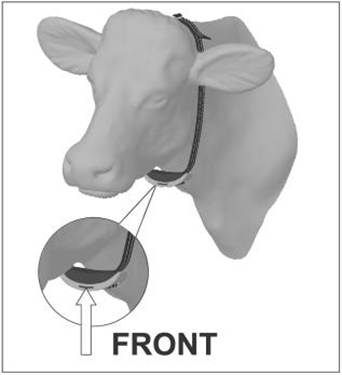
The SmartTag is attached incorrectly. This may affect the accuracy of the data.

Possible causes

  • The tag is attached back to front
  • The tag is turned sideways
  • The tag is twisted on the collar


Reattach the SmartTag:

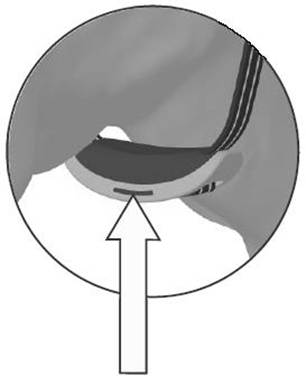
  • The groove and arrow must point toward the cow’s head
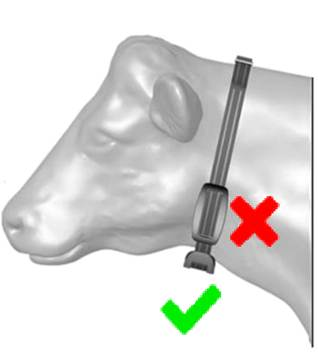
  • The tag must sit straight and flat
  • Make sure it is firmly attached


Check the instruction video attaching the SmartTag Neck.


A cow's head with a halter

AI-generated content may be incorrect.A close-up of a seat

AI-generated content may be incorrect.A cow's head with a belt 
AI-generated content may be incorrect. 

SmartTag no data


The SmartTag is attached to an animal, but Velos receives no data.

SmartTag out of antenna range.
This can occur when the cow is grazing. When the cow returns within range, the SmartTag automatically disappears from the list SmartTag no data.


Incorrect SmartTag number.
Verify and correct the SmartTag number: 

  1. On the Dashboard tile Tag issues, select Show tag issues.
  2. Select the SmartTag no data tab.
  3. Select the blue animal number, the Animal details page opens.
  4. In Basic data, select edit.
  5. Enter the correct tag number and select Submit, and then select OK to confirm.


SmartTag removed but still active.
A SmartTag enters sleep mode after about 8 hours of inactivity.
If the SmartTag is not in use but still moves (for example, stored in a storage cabinet with a frequently opened and closed door), it may continue sending data.


Mute the SmartTag number in Velos:

  1. On the Dashboard tile Tag issues, select Show tag issues.
  2. Select the SmartTag no data tab.
  3. Select the checkbox in front of the blue animal number.
  4. Select Actions > Mute, and then select OK to confirm.


If the problem cannot be resolved using the steps above, contact your dealer for assistance.

Muted SmartTag


The SmartTag has been manually set to muted mode.

Unmute SmartTag number.

  1. On the Dashboard tile Tag issues, select Muted SmartTags.
  2. Check the box in front of the animal number.
  3. Select Actions > Unmute, and then select OK to confirm.

Not my SmartTag


The SmartTag was added to the Not my SmartTag list by mistake.

Remove a SmartTag from the Not my SmartTag list if it was added there by mistake.

  1. On the Dashboard tile Tag issues, select Show tag issues.
  2. Select the Not my SmartTag tab.
  3. Select the checkbox in front of the blue animal number.
  4. Select Actions > Mark as my tag, and then select OK to confirm.


Was this article helpful?

That’s Great!

Thank you for your feedback

Sorry! We couldn't be helpful

Thank you for your feedback

Let us know how can we improve this article!

Select at least one of the reasons
CAPTCHA verification is required.

Feedback sent

We appreciate your effort and will try to fix the article

category image

Velos webhelp

Open navigation