The Home page is your starting point in Nedap Now. It gives you quick access to the information that is most relevant to your work. Create your own overviews by creating custom dashboard for your company.
On the Home page, you can create and switch between dashboards. A dashboard brings together widgets from Nedap Now apps. When you click on a widget, it brings you directly to the correct page in Nedap Now.
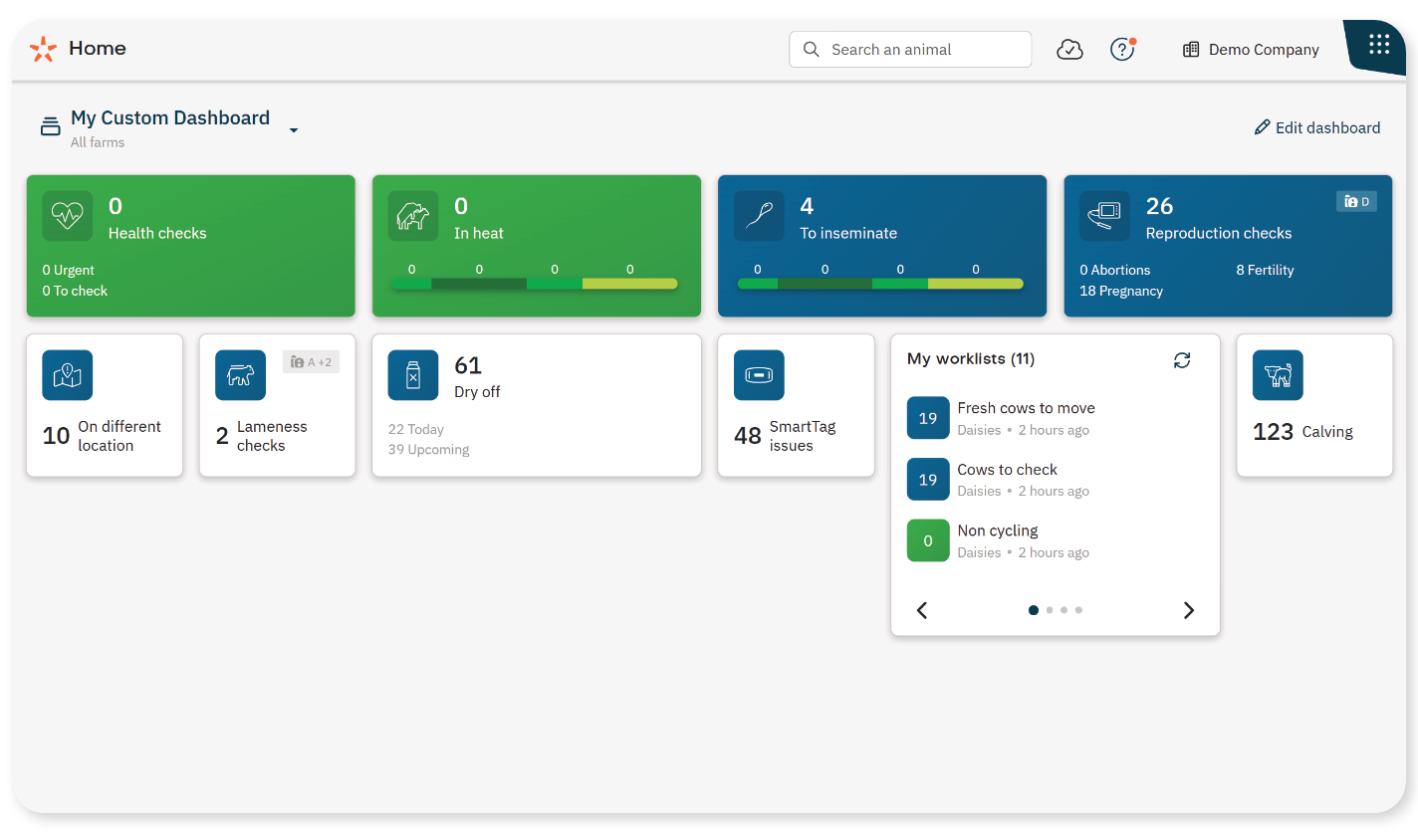
NoteCurrently, the available widgets show information from the Worklist and Herd app. More widget types will be added in the future.
Dashboards
All dashboards are available to all users. However, the information on the dashboards can differ due to user roles and rights, see section Access to Dashboards and Widgets below.
A dashboard can be company-wide or farm-specific.
- Farm-specific dashboard: all widgets are automatically scoped to one selected farm.
- Company-wide dashboard: you can choose the farms for each widget separately.
To learn how to create and customize a dashboard, see Create a Dashboard and Add, Edit and Remove Widgets on a Dashboard.
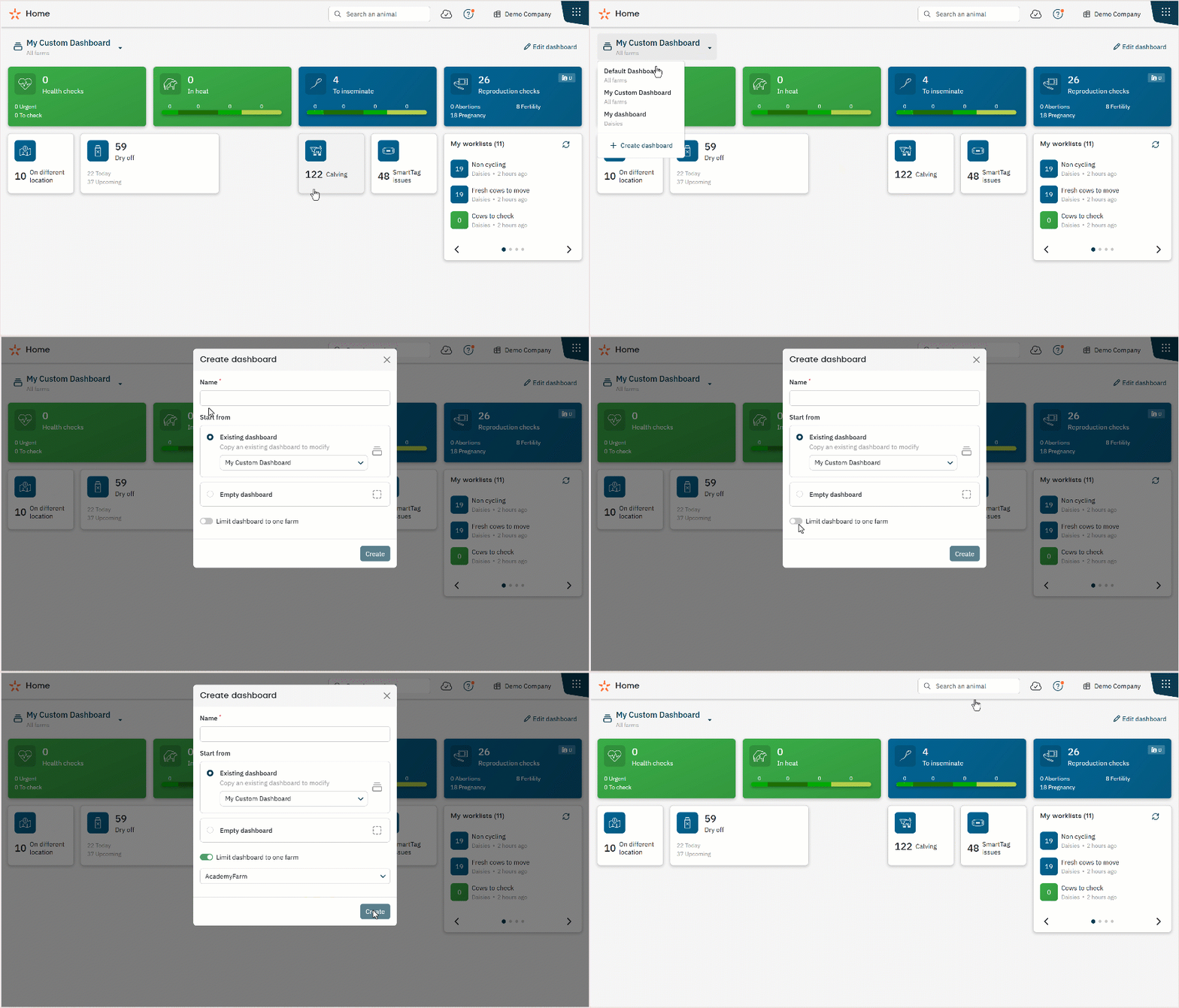
Switch Between Dashboards
You can create multiple dashboards for different ways of working, for example:
- Different farms
- Seasons
- Daily tasks or areas of focus
Use the dashboard selector in the top-left corner of the Home page to switch between available dashboards. Nedap Now remembers the last dashboard you selected on that device.
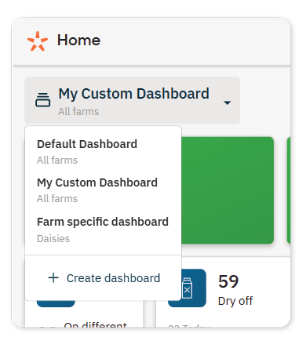
Access to Dashboards and Widgets
Your roles and rights also apply on the Home page.
- You can only access a farm-specific dashboard when you have access to the farm it is scoped to.
- On a company-wide dashboard, you only see information from the farms and apps you have access to.
The Widgets
A dashboard consists of widgets which show information from Nedap Now apps. Below explains the widget possibilities (for now only Worklist and Herd widgets).
Scope a Widget to a Specific Farm
For companies with multiple farms, you can scope a Worklist widget to one or more farms.
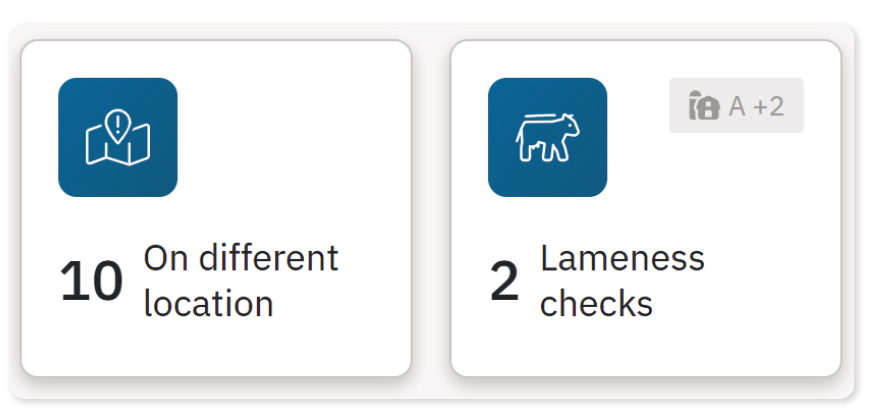
A badge on the widget indicates when it is configured for only part of the farms you have access to.
Worklist Widget
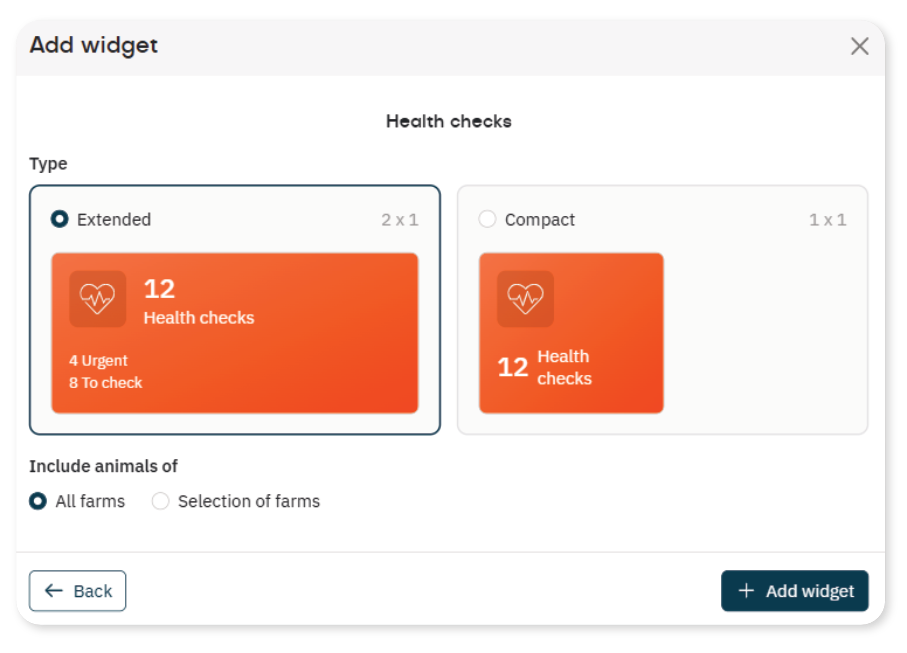
Worklist widgets show the number of animals on a worklist. Depending on the type of worklist, they can also show the number of animals for each reason they appear on that Worklist.
A Worklist widget can have one of the following views:
My Worklists Widget
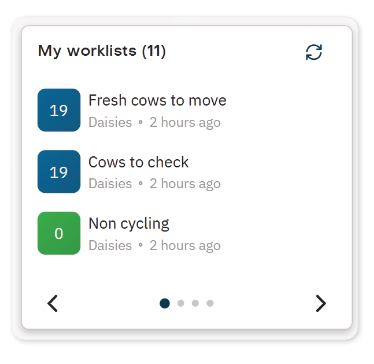
The My Worklists widget shows the Worklists available to you for your company or farms. The widget is divided into pages; use the arrows to move between them.
The widget shows:
- The number of animals on each worklist
- The farm the worklist applies to
- When the worklist was last updated
- An Update button that updates all worklists in the widget
Herd Widgets
Herd widgets show data from the Herd app for one farm. These widgets cannot be scoped to multiple farms.
The following widgets are available:
- Pen alerts
- Health performance + trend
- Beahviour consistency + trend
- Cycling rate + trend
