Use the Reports app to create reports with animal data from across the entire Nedap Now company, including multiple farms. Select the columns to display, use filters to choose which animals to include, and set the sort order.
Reports can be printed or exported as Excel or CSV files. This makes it easy to share data with veterinarians, consultants or other parties for analysis without making changes in Nedap Now.
For examples, see Report Examples.
Create a Report
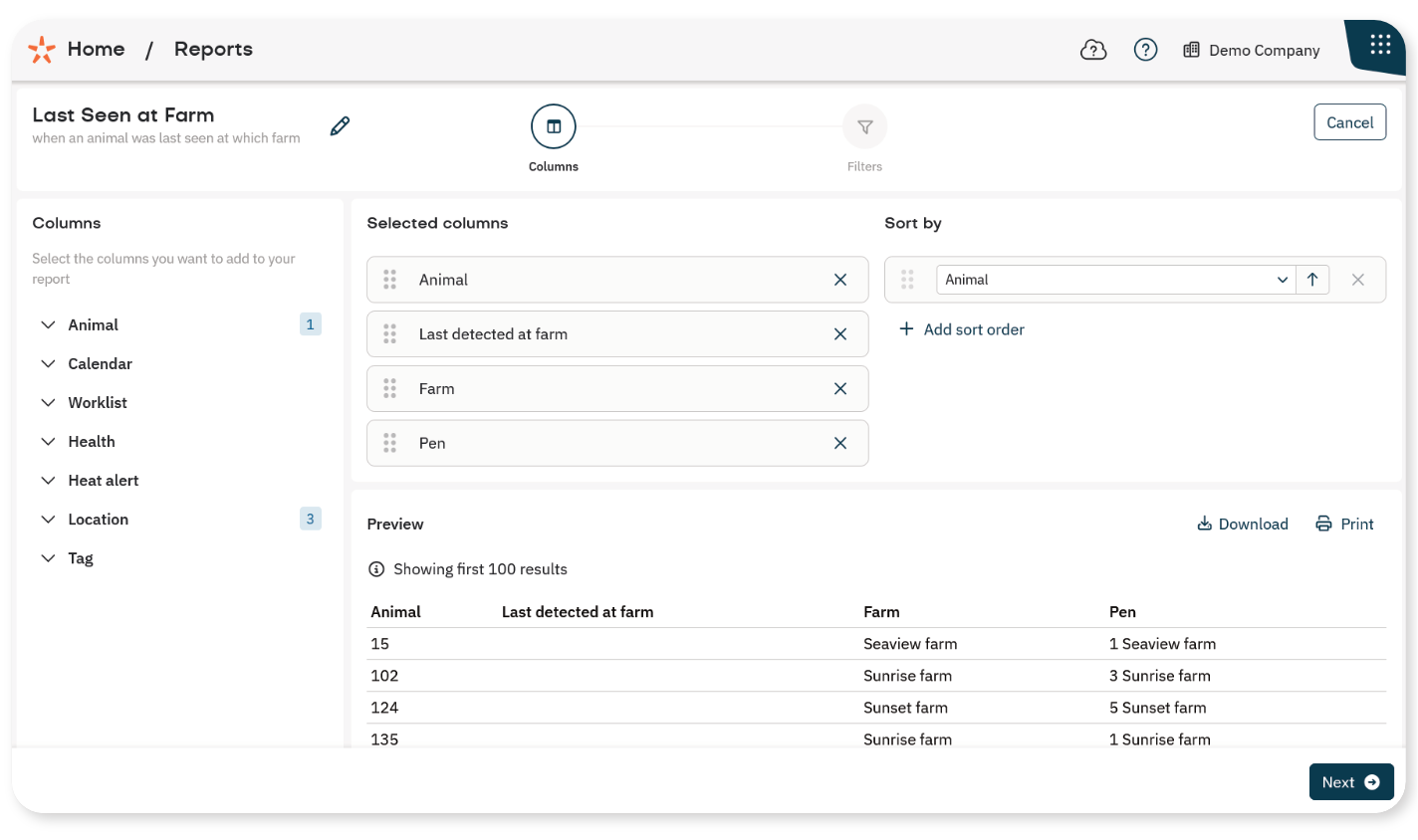
The report setup guides you through two tabs: Columns and Filters. Preview shows how the report will look and displays the first 100 results.
- In the Reports app, select + Report.
- Enter the Name of the report. Use a descriptive name and include the farm name if the report is for a specific farm, especially when sharing it with others.
1. Select columns
Columns determine which information appears in the report.
- On the Columns tab, select + next to each column to add.
- In Selected columns, drag the columns to change their order.
You can add as many columns as needed, including the same column more than once. See the Overview of Filters and Columns for the available options.
If needed, choose how to sort the animals:
In Sort by, select + Add sort order.
Select a column from the drop-down list.
Select the arrow next to the column to switch between ascending (↑) and descending (↓) order.
To sort by more than one column, add another sort order. Drag the sort options to set their priority. The top option has the highest priority.
Select Next.
2. Set filters
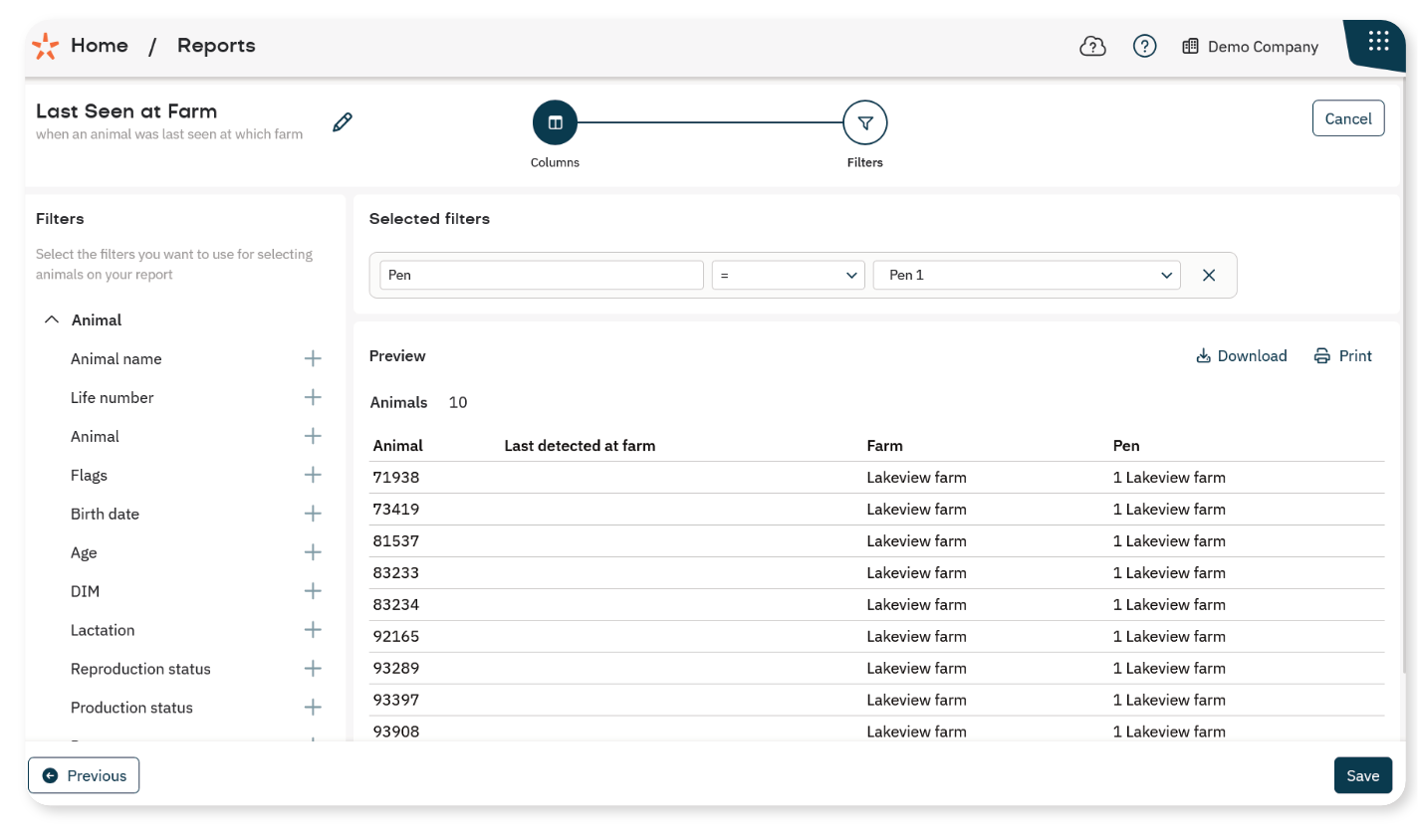
Filters determine which animals appear in the report. Without filters, the report includes all animals. To use filters:
On the Filters tab, select + next to a filter in the left panel.
In Selected filters, select an operator, such as = or contains, if available.
Enter or select the value. For date filters, also check the selected time unit, such as Days ago.
Check Preview to see whether the expected animals appear.
Repeat these steps to add more filters.
TipAdd and set up one filter at a time. Check Preview after each filter. If the results are unexpected, check the operator and value of the filter just added.
You can add as many filters as needed, including the same filter more than once. To remove a filter, select × next to it.
See the Overview of Filters and Columns for the available filters and the Overview of Filter Operators for help choosing an operator.
Select Next.
3. Download or print a report
Use the options in Preview to export or print the report:
