To ensure animals are sorted correctly, you need to define both the sorting pens and the lanes between sorting gates. This setup allows the system to understand the layout of the farm and track each animal’s location accurately.
In Velos, sorting pens and lanes are configured as specific pen types:
- Sorting pen: A pen of the type Sorting option, used to separate animals based on a treatment or purpose (for example, insemination or general checkup). You can assign multiple pens to the same sorting option if they provide the same treatment. You can add up to 6 sorting options.
- Lane: A pen of the type General, representing the area between two sorting gates. Lanes help the system track animals as they move through the farm.
Understand Sorting Options
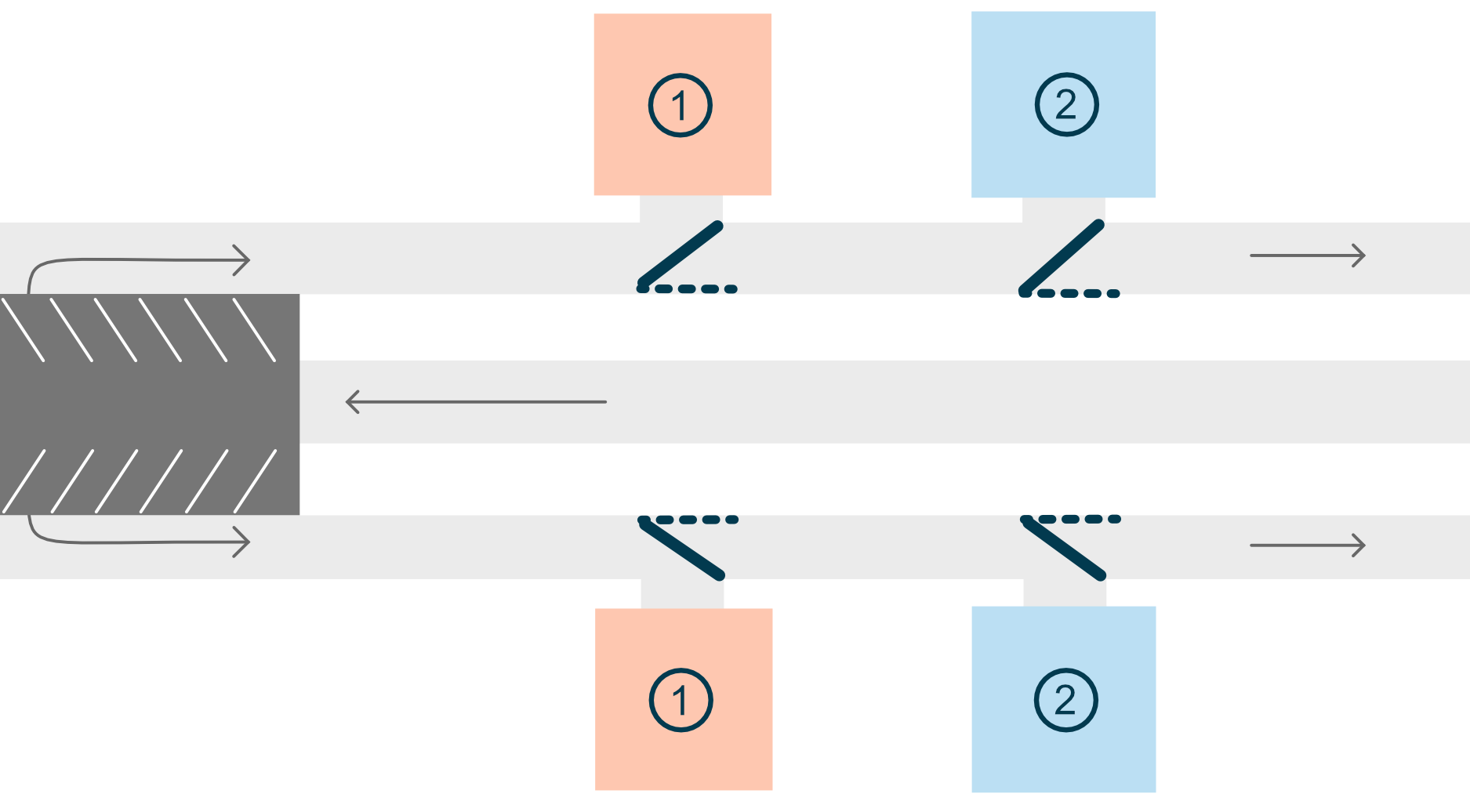
The image below shows a farm layout with two insemination pens and two general treatment pens.
When animals return from the milking parlor, the system follows a sorting sequence:
- The first sorting option is the insemination pen.
- If an animal is not sorted there, the system checks the second sorting options, which is the general treatment pen.
- If the animal is not sorted to any of these pens, it will continue walking to the barn.
Because both general treatment pens and insemination pens serve the same purpose, they are treated equally as second or first sorting options.
In the system, configure the pens as follows:
- Insemination 1 = First sorting option
- Insemination 2 = First sorting option
- General treatment 1 = Second sorting option
- General treatment 2 = Second sorting option
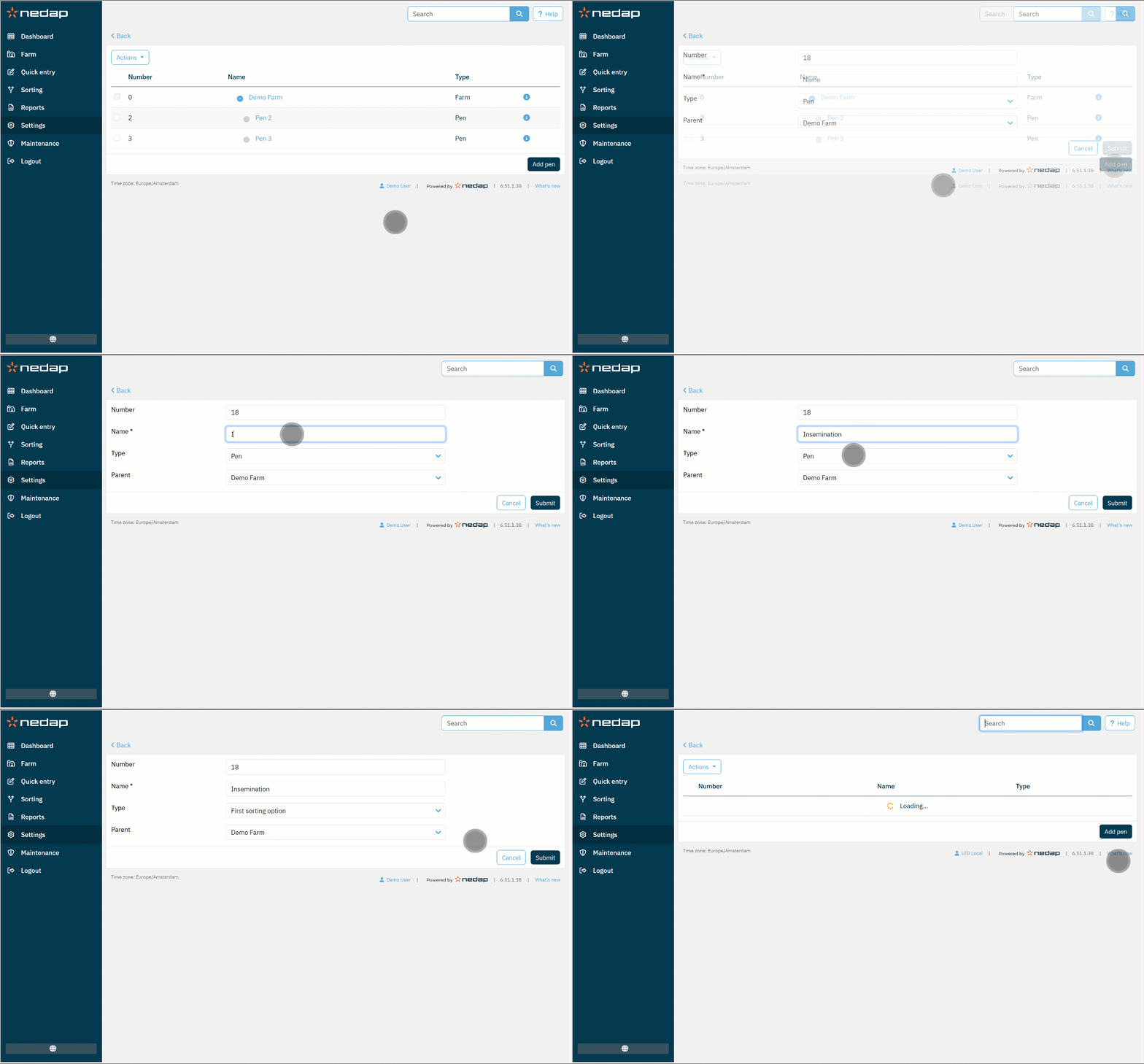
Add a Sorting Pen
- Go to Settings > Farm > Farm layout.
- Select Add Pen.
- Enter the pen details:
- Number: (Optional) Change the default number if needed.
- Name: Enter a name that describes the pen's function (e.g. Hoof trim).
- Type: Select the appropriate sorting option. Each sorting option represents a specific treatment.
TipRead Understand Sorting Options (top of this page) to understand which type the sorting pen should be.
- Parent: (Optional) If you have multiple farms, choose the correct one.
- Select Submit.
Add a Lane (General Pen)
- Go to Settings > Farm > Farm layout.
- Select Add Pen.
- Enter the pen details:
- Number: (Optional) Change the default number if needed.
- Name: Enter a clear name, such as lane 1, lane 2, or exit SmartSort 1.
- Type: Select General.
- Parent: (Optional) Select the parent. This is a farm subdivision you created yourself, such as a location, section, or barn. You can use parents to organize your farm layout for your own administration and reporting.
- Select Submit.
